Classics Kit — Lesson Creation
Sometimes you have to remember that no one knows what you're working on unless you talk about it. Though with some unfortunate interruptions (such is life), Classics Kit development continues. And now...people are actually using it! Late last year I gave a preview of one feature of Classics Kit that I'm working on and it's called Linguamap. Now that I am teaching a class, I need Linguamap for my content more than ever. But because of the class, I had two more urgent problems to solve. First, I wanted a learning experience that supports not only basic content (text, image, and audio), but also more interactive exercises, like cloze sentence activities, various types of quiz activities, and others, all fused seamlessly together. Second, I wanted the creation experience to be simple, because otherwise I (and other creators) likely wouldn't take the time. So I built out this first version of the Lesson feature in Classics Kit to solve both problems.
Creating Lessons
I'll just start with a few examples today. In these gifs, you'll see the editor window on the left and a view on the right for what it would look like to the student.
Text with Audio
Students need text paired with audio so they can learn how the sounds of the language correspond to the script. This is especially important at first, but is good to reinforce for quite a long time. To pair up text and audio, all you have to do is write or paste in some text, trigger the record audio dialog, and start talking.
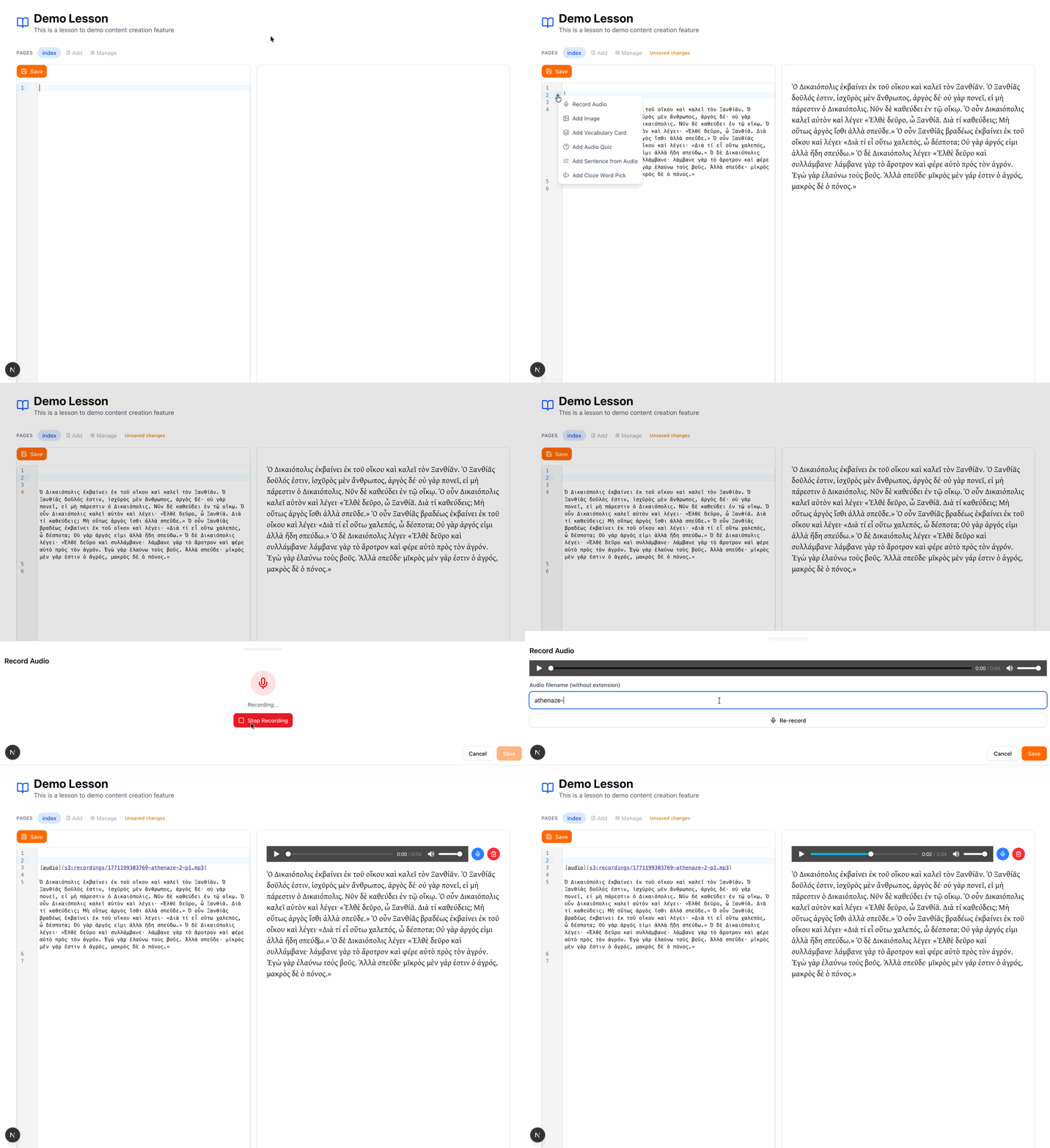
There's the option to re-record if you mess it up. I use that frequently, especially when recording longer chunks of text.
Markdown Formatting
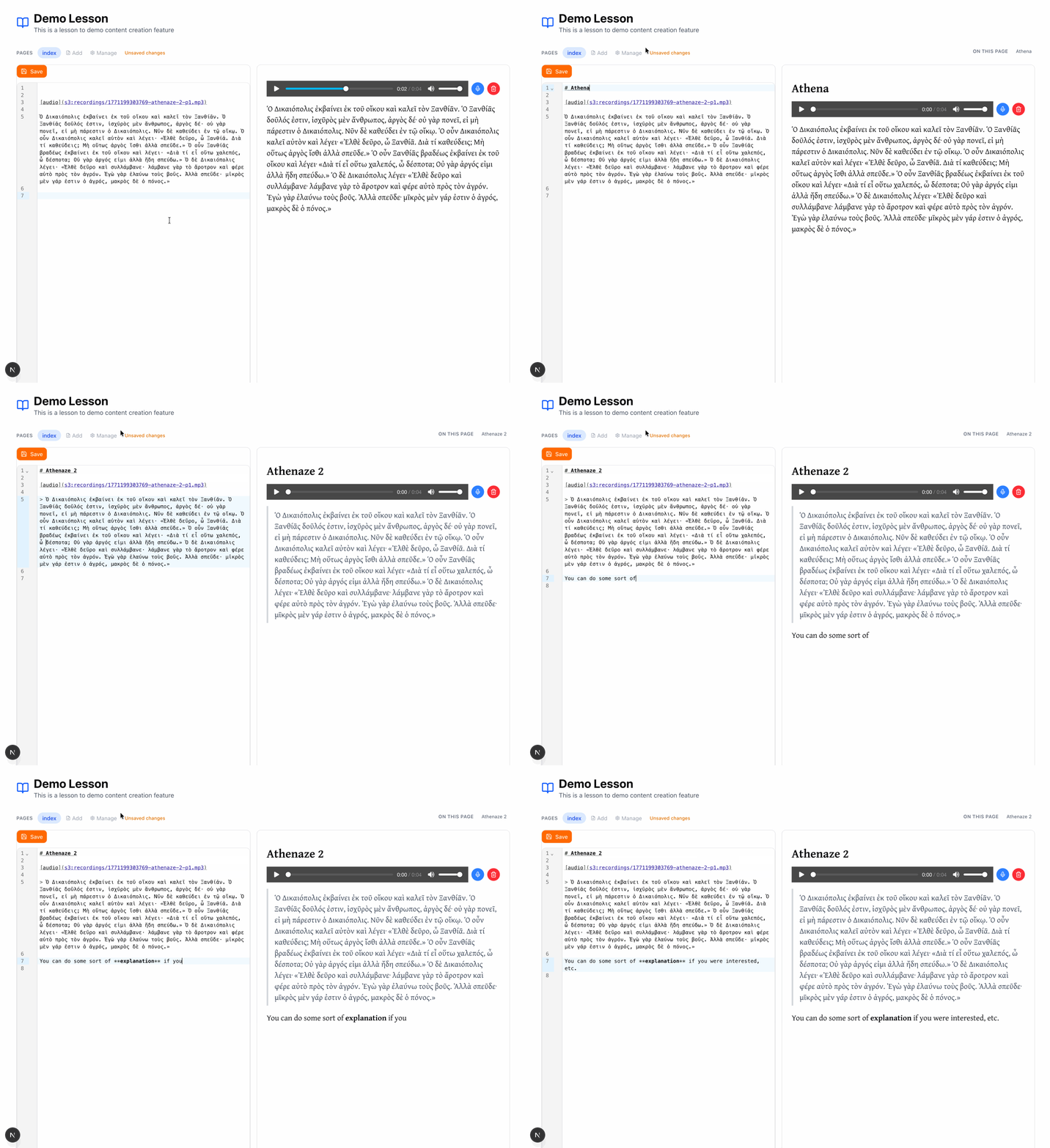
It also supports basic Markdown formatting for headers, bold, blockquote, and so forth.
Image, Audio, and Text
Or how about easily being able to combine image, audio, and text? This is useful for introducing students to a word with optional L1 help.
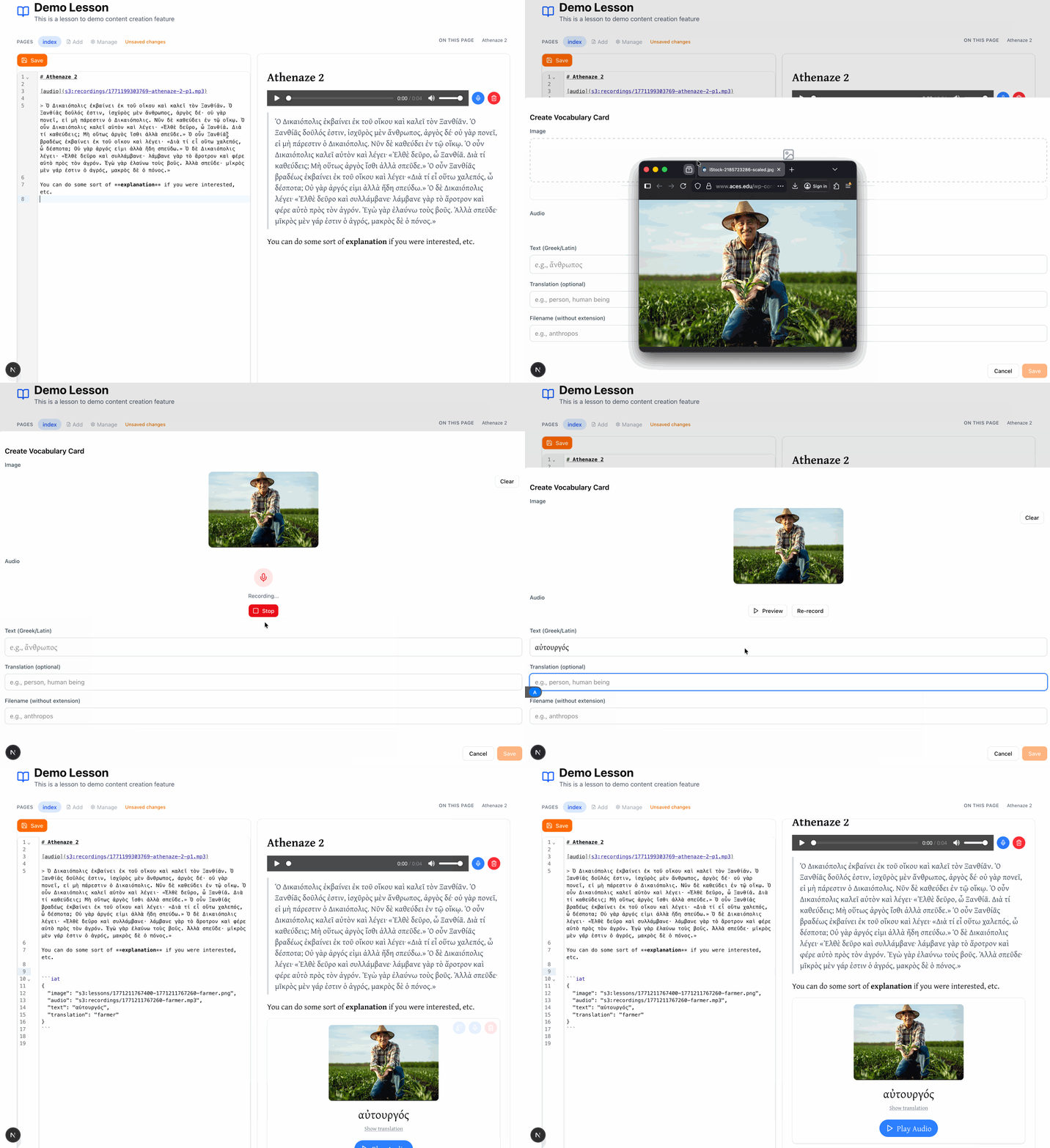
In this case, I have to store more information than you'd have in typical markdown, so I store it in a code block. Here it is since the gif zooms past it.
```iat
{
  "image": "s3:lessons/1771211767400-1771211767260-farmer.png",
  "audio": "s3:recordings/1771211767260-farmer.mp3",
  "text": "αὐτουργός",
  "translation": "farmer"
}
```
This structured bit of information isn't supported in Markdown, so I store it as JSON in a code block. Perhaps this isn't easy at first to write, but that's okay. The tool does it. But after it's written, it's editable, so you can come in and change the text or the translation.
Student View
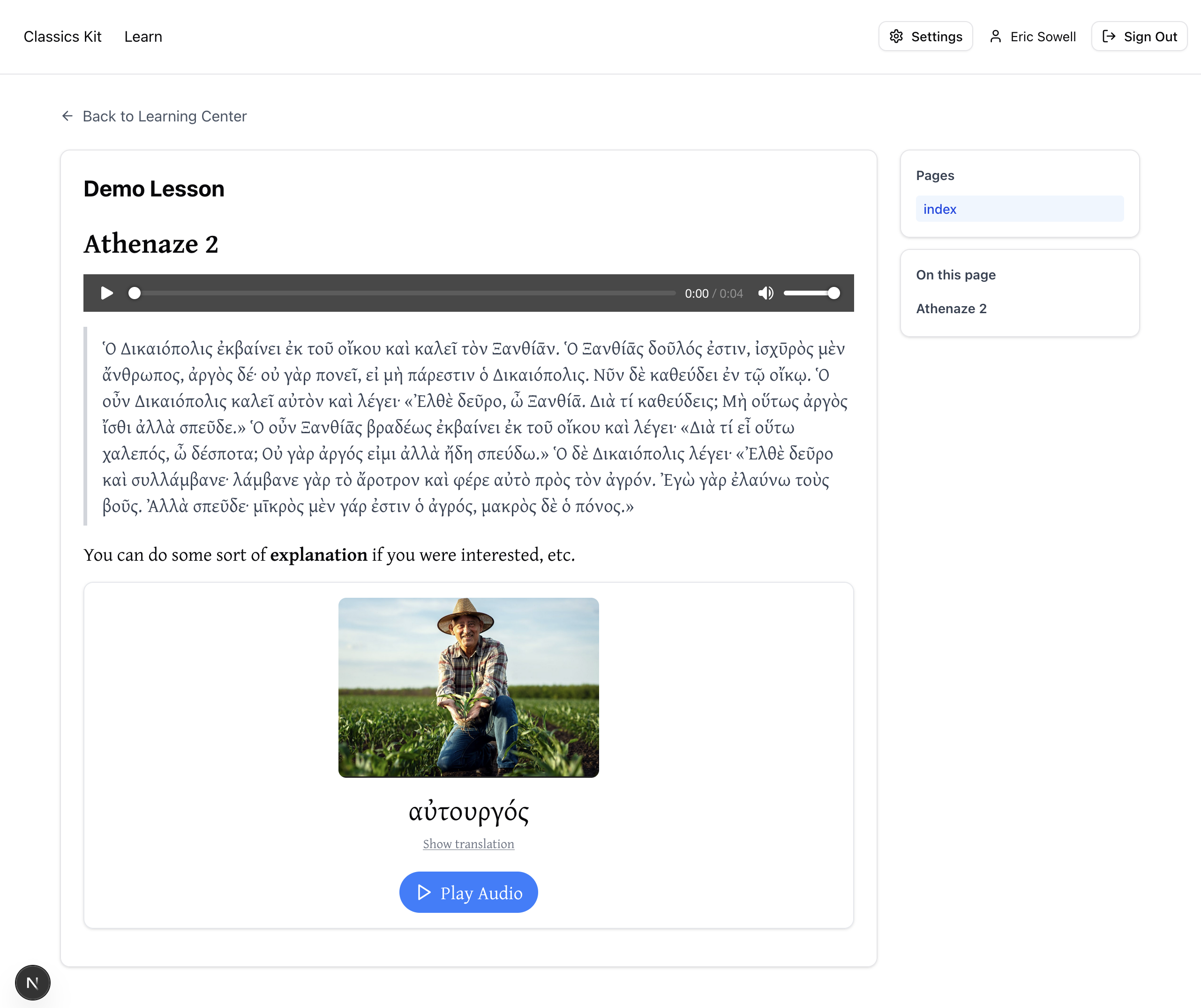
The student view looks very similar to the live preview version the editor uses. The only thing additional is they get some easy navigation over on the right. Each lesson can have multiple pages and within a lesson page there can be multiple sections, so the right navigation makes that navigable.
What Is Next?
There's more features to show but I will share more later. For the next few weeks I will keep working on this feature so I can provide the best experience for myself as I write and for my students, so it will continue to develop. This will include simple (but important) things like image attribution and complicated things like an integrated SRS (already in progress). Stay tuned. If anyone wants to discuss, wants a live demo, or whatever, I am easy to reach. Or, if you want to be kept up-to-date, sign up below.
Next week on the blog, I plan on sharing some of the technical details for the nerds in the audience.